
If you have downloaded an Android app outside Google Play, you may have an APK file sitting in your Downloads folder. Unlike apps installed directly from the Play Store, we needs to Install APK Files on Android manually.
The process is usually simple, but Android may ask you to allow the app or browser you used to download the file to install apps from that source.
In this guide, we will explain how to install an APK on Android, where to find the downloaded file, what the security warnings mean, and what to do if the installation does not work.
What Is an APK File?
APK stands for Android Package Kit. It is the file format Android uses to distribute and install applications.
When you install an app through Google Play, most of the process happens automatically. When you download an APK separately, you are handling that installation yourself.
APK files are commonly used when an app is not available through Google Play, when someone needs a particular app version, or when an application is distributed through another website.
However, downloading an APK from outside Google Play means you should pay attention to its source before installing it.
Before Install APK Files on Android
Before opening the file, take a moment to check a few things:
- Make sure you downloaded the correct APK.
- Check where the file came from.
- Avoid suspicious modified or cracked versions.
- Make sure your Android version supports the app.
- Keep Google Play Protect enabled.
- Be careful if the app asks for permissions that do not seem related to its purpose.
If you are unsure about a file, it is better to check it before installing rather than trying to deal with a problem afterward.
You can also read our guide on how to check whether an APK is safe before installing for a more detailed safety checklist.
How to Install APK Files on Android
The exact wording can vary slightly depending on your Android phone and version, but the general process is similar.
Step 1: Download the APK
First, download the APK file from the website providing the application.
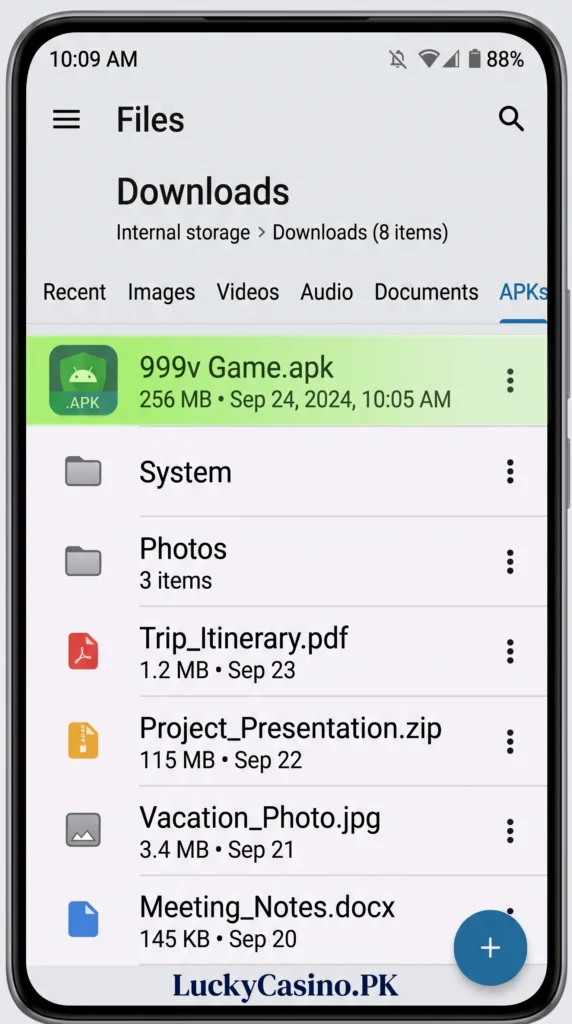
Once the download finishes, you will normally find the file in your phone’s Downloads folder.
If you downloaded it using Chrome, you can also open Chrome and go to its Downloads section.
Step 2: Open the APK File
Open your phone’s Files, File Manager, or similar app.
Go to:
Downloads → APK file
Tap the APK file to start the installation process.
Android may show a message asking whether you want to install the application.
Step 3: Allow the Source to Install Apps
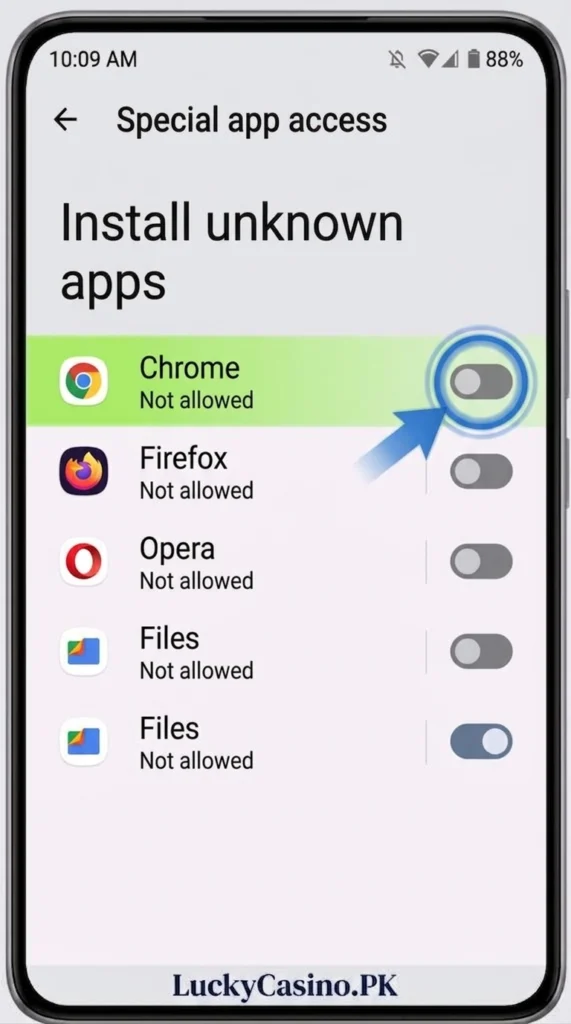
If Android blocks the installation, you may see a message saying that your phone is not currently allowed to install apps from that source.
On newer Android versions, this permission is normally connected to the particular app you used to open the APK, such as Chrome or a file manager.
For example, Android may provide an Install unknown apps option for Chrome.
Open the relevant setting and allow that source to install the application.
You do not normally need to give this permission to every application on your phone.
Step 4: Start the Installation
Return to the APK file and tap it again if necessary.
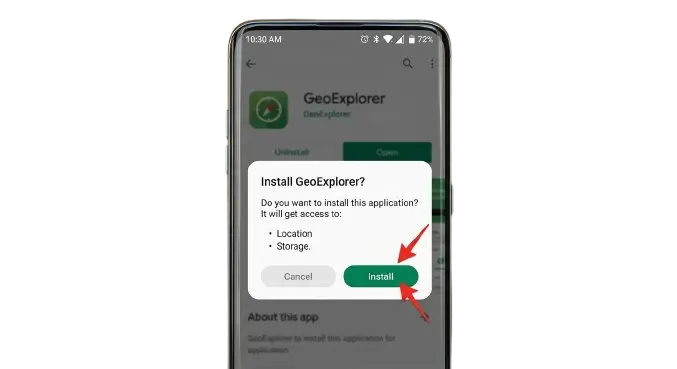
You should now see the installation screen.
Tap Install and wait while Android installs the application.
Depending on the size of the app and your phone, this can take a few seconds.
Step 5: Open the App
After installation is complete, Android will usually show options such as Open or Done.
Tap Open if you want to launch the app immediately.
You can also find the newly installed application in your normal app list.
How to Install an APK Downloaded From Chrome
If you downloaded the APK through Chrome, the process is straightforward.
Open:
Chrome → Downloads → Select the APK → Install
If Android displays a message that Chrome is not allowed to install unknown apps, open the provided settings and enable the permission for Chrome.
After returning to the APK, continue with the installation.
Once you have finished installing apps from that source, you can turn the permission off again if you do not need it.
How to Install an APK From a File Manager
You can also install an APK that is already saved on your phone.
Open your File Manager and locate the APK, usually inside the Downloads folder.
Tap the file and follow the installation instructions shown by Android.
If the installation is blocked, check the Install unknown apps permission for the file manager you are using.
Why Does Android Show a Security Warning?
Android may display a warning when you install an application obtained outside Google Play.
This does not automatically mean that the APK is malicious. It means Android is treating the installation differently because the application came from a source outside the usual Google Play distribution process.
Google Play Protect can also check applications and warn users about potentially harmful apps.
For this reason, you should not automatically ignore a security warning just to complete an installation.
If you want to understand how Play Protect works with APK files, see our guide on Google Play Protect and APK Safety.
What If the APK Won’t Install?
Sometimes an APK simply refuses to install. Common reasons include:
- The APK download is incomplete or corrupted.
- Your Android version is not supported.
- There is not enough storage space.
- Another version of the same app is already installed.
- The APK is not compatible with your device.
- The required installation permission has not been enabled.
- Android or Play Protect has blocked the installation.
If you encounter one of these problems, don’t repeatedly download random versions of the same file.
Instead, check the APK source, verify that the file is compatible with your phone, and investigate the specific error.
For a detailed troubleshooting process, see How to Fix APK Installation Problems on Android.
Is It Safe to Install APK Files on Android?
Installing an APK is not automatically unsafe. The important part is where the file came from and what the application contains.
An APK from an unknown or suspicious source deserves more caution than an application obtained through an official app store or directly from a verified developer.
Before installing an APK, consider checking the developer, file source, requested permissions, available version information, and any warnings shown by Android or Play Protect.
For more information, read How to Check Whether an APK Is Safe Before Installing.
Frequently Asked Questions
Can I Install APK Files on Android without Google Play?
Yes. Android supports installing applications from sources other than Google Play, although you may need to allow the particular source to install unknown apps.
Where are APK files stored on Android?
Downloaded APK files are commonly stored in the Downloads folder, although the exact location can vary depending on the browser or file manager.
Do I need to enable Unknown Sources?
On newer Android versions, you normally give permission to the specific app that is installing the APK through Install unknown apps rather than enabling one universal setting.
Can I delete the APK after installing the app?
Yes. Once the application has been successfully installed, the original APK file is generally no longer needed unless you want to keep it for another installation.
Why is Android blocking my APK?
Android may block an APK because of installation permissions, compatibility problems, a corrupted file, security concerns, or other system restrictions.
Final Thoughts
Installing an APK on Android is generally a simple process: download the file, open it from your Downloads folder, allow the relevant source if Android asks for permission, and start the installation.
The installation itself is only one part of the process, though. Since APK files can come from outside Google Play, checking the source and paying attention to Android’s security warnings is equally important.
If an APK does not install, avoid immediately disabling security features. First find out why Android is blocking it and whether the file is actually suitable for your device.