
Downloading an APK is easy, but deciding whether youvAPK Is Safe is a different question.
An APK file is not automatically dangerous just because it comes from outside Google Play. At the same time, you should not assume that a file is safe simply because it has a familiar app name or looks like the original.
Before installing an APK on your Android phone, there are several things you can check. Looking at the source, developer, permissions, file information, and security warnings can help you make a more informed decision.
If you are new to APK files, you can first learn how to install APK files on Android and then use the checks in this guide before installing one.
This guide explains some practical ways to check an APK before installing it.
Why Should You Check an APK Before Installing It?
Apps installed from outside Google Play can come from many different websites and sources. Some may be legitimate, while others may distribute modified, outdated, or potentially harmful files.
A suspicious APK could potentially contain unwanted software or request access to information that the app does not reasonably need.
That is why it is better to spend a few minutes checking an APK before installing it, especially if you downloaded it from an unfamiliar website.
1. Check Where the APK Came From
The first thing to consider is the source.
Ask yourself:
- Do I recognize the website?
- Does the website clearly identify the app and developer?
- Does the download page look legitimate?
- Is the website pushing several fake download buttons or redirects?
- Does the website make unrealistic claims about the application?
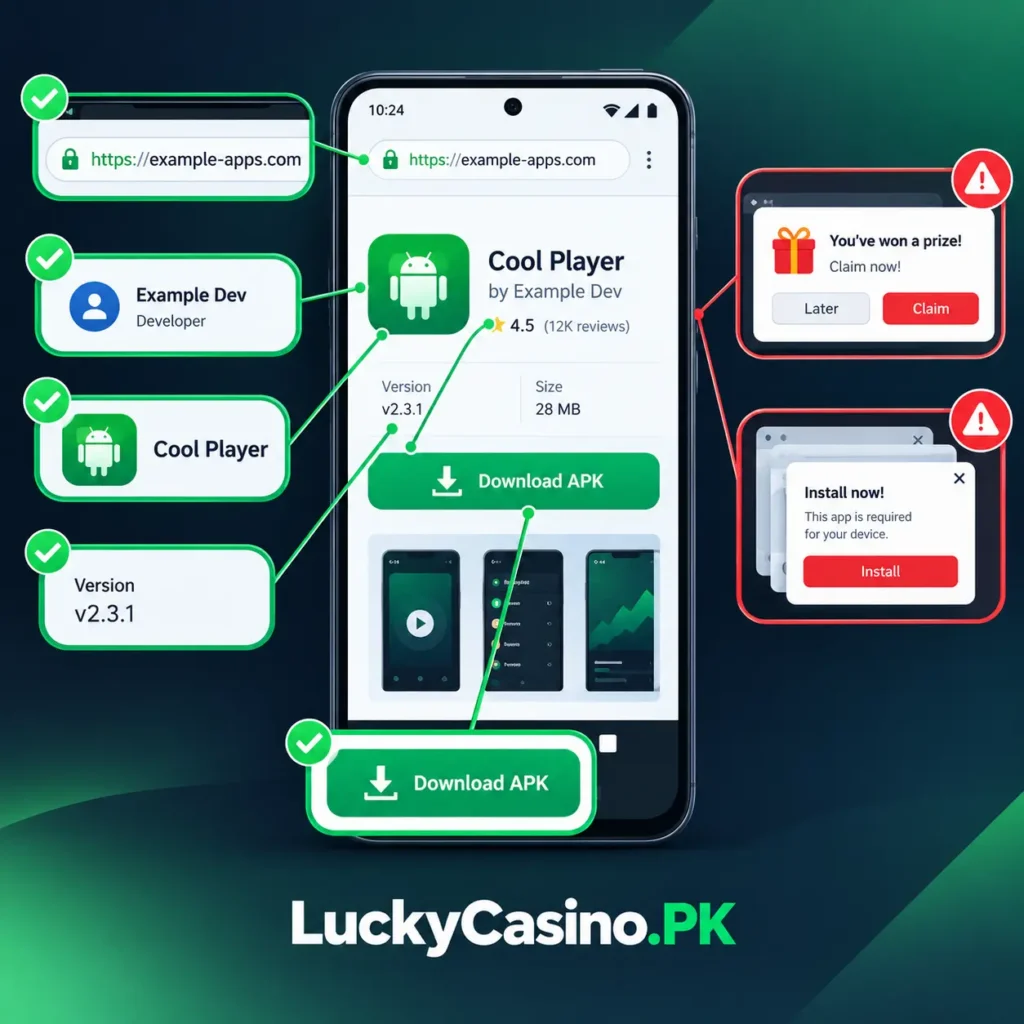
When possible, compare the application information with the developer’s official website or another trusted source.
If Android asks you to allow an app to install applications from outside Google Play, you can also read our guide on what “Unknown Sources” means on Android to understand what this permission does.
2. Check the Developer Name
Look at the developer information before downloading or installing an APK.
The developer name should make sense for the application you are trying to install.
For example, if you are looking for an app from a particular company but the APK is attributed to a completely unrelated developer, stop and investigate further.
Keep in mind that a matching developer name alone does not prove that the APK is genuine. It is simply one piece of information to check.
3. Check the APK Name and Version
Look at the filename and version information.
Be cautious if the file has a strange name, an unexplained version number, or claims to be a special version without providing any useful information about what changed.
You should also check whether the Android version requirements match your phone.
A file that is very old may not work correctly on a newer Android version, while a newer version may require Android features your phone does not have.
4. Scan the APK for Malware
Another useful step is to scan the APK with a reputable security or malware-scanning service before installing it.
A scan can help identify known malicious files or suspicious software.
However, a clean scan should not be treated as an absolute guarantee that an APK is safe. Security tools can have limitations, and new or modified threats may not always be immediately detected.
Think of scanning as one safety check, not the only one.
5. Review the App Permissions
Permissions can give you a better idea of what an application wants to access.
Depending on the app, Android may request access to things such as:
- Camera
- Microphone
- Location
- Contacts
- Photos and files
- Notifications
The important question is whether the requested access makes sense for the app.
For example, a navigation application may reasonably need location access. A simple offline game requesting access that appears unrelated to its main function deserves closer attention.
An unusual permission does not automatically prove that an application is malicious. It simply means you should investigate before continuing.
6. Be Careful With Modified and Cracked APKs
Modified APKs can be particularly difficult to evaluate.
You may see APKs advertised as:
- Mod APK
- Premium unlocked
- Unlimited coins
- No ads
- Cracked version
- Paid features unlocked
These files may have been changed from the original application.
That does not mean every modified APK is malicious, but modification makes it harder to know exactly what has been added or changed.
If an APK promises features that normally require payment or access through an official service, be especially cautious.
7. Look for Suspicious Download Pages
Sometimes the biggest warning sign is not the APK itself but the page where you are downloading it.
Be careful with pages that:
- Open multiple unexpected tabs
- Redirect you repeatedly
- Display fake “Download” buttons
- Ask you to install another application first
- Claim your phone has a virus
- Pressure you to disable security protections
- Ask for unnecessary personal information
A professional-looking page is not proof of safety either, but aggressive or deceptive download behavior should make you reconsider the source.
8. Pay Attention to Google Play Protect
Google Play Protect provides another layer of protection on Android.
It can check applications, including apps installed from sources outside Google Play, and may warn you if it detects potentially harmful software.
If Play Protect displays a warning about an APK, don’t immediately assume the warning is something you should bypass.
Instead, check the application source and investigate why Android has raised the warning.
We explain this in more detail in our guide on Google Play Protect and APK Safety.
9. Check Whether the APK Matches the Original App
If you are trying to install an official application, compare the APK information with information from the developer.
Look for things such as:
- App name
- Developer
- Version
- Package information where available
- Official website
- Release information
If several details don’t match, don’t simply assume it is another version of the same app.
It may be a modified or repackaged application.
10. Don’t Disable Security Just to Install an APK
One of the most important things to remember is that an installation problem does not automatically mean you should turn off Android’s security features.
If a website tells you to disable Play Protect or ignore every Android warning before downloading its APK, take a step back.
First determine what is causing the warning.
Sometimes an APK fails because it is incompatible, corrupted, or incorrectly packaged. Other times, Android may be warning you about a genuine security concern.
If the APK is not installing and you are not sure why, see our guide on how to fix APK installation problems on Android for a step-by-step troubleshooting process.
A Simple APK Safety Checklist
Before installing an APK, ask yourself:
Where did it come from?
Is the source recognizable and trustworthy?
Who developed it?
Does the developer information make sense?
Is the version correct?
Does it match the application you intended to download?
Has it been scanned?
Have you checked it with a reputable security tool?
What permissions does it request?
Do those permissions make sense for the app?
Does Play Protect show a warning?
If yes, investigate instead of immediately bypassing it.
Is it modified or cracked?
If so, understand that its contents may differ from the original application.
No single check can guarantee that an APK is completely safe. Looking at several signs together gives you a better basis for deciding whether to install it.
What If You Already Installed a Suspicious APK?
If you installed an APK and then noticed unusual behavior, don’t ignore it.
You can start by reviewing the application’s permissions, checking Play Protect, and removing the application if you no longer trust it.
If you entered sensitive information into an unfamiliar application, consider changing the affected passwords and reviewing your accounts for unusual activity.
For future downloads, check the APK before installing it rather than waiting until something seems wrong.
Frequently Asked Questions
Can an APK contain a virus?
Yes. An APK can contain malicious or unwanted software, which is why you should consider the source and scan unfamiliar files before installing them.
Is every APK downloaded outside Google Play unsafe?
No. An APK being outside Google Play does not automatically mean it is malicious. However, it does mean you should pay closer attention to its source and security.
Does a virus scan guarantee an APK is safe?
No. A clean scan is useful, but it cannot guarantee that an APK is completely safe.
Are Mod APKs safe?
There is no blanket answer. Modified APKs have been changed from the original application, so it can be harder to verify exactly what they contain.
Should I install an APK if Play Protect warns me?
Treat the warning seriously and investigate the file and its source before proceeding. Do not disable security simply to force an installation.
Final Thoughts
Checking an APK before installation does not have to be complicated. Start with the source, verify the developer and version, inspect permissions, scan the file where appropriate, and pay attention to warnings from Android app security and Google Play Protect.
Most importantly, don’t rely on a single sign to decide whether an APK is trustworthy. A familiar name, clean scan, or professional-looking website by itself is not enough.
Taking a few minutes to check the file can help you avoid unnecessary security and privacy problems later.